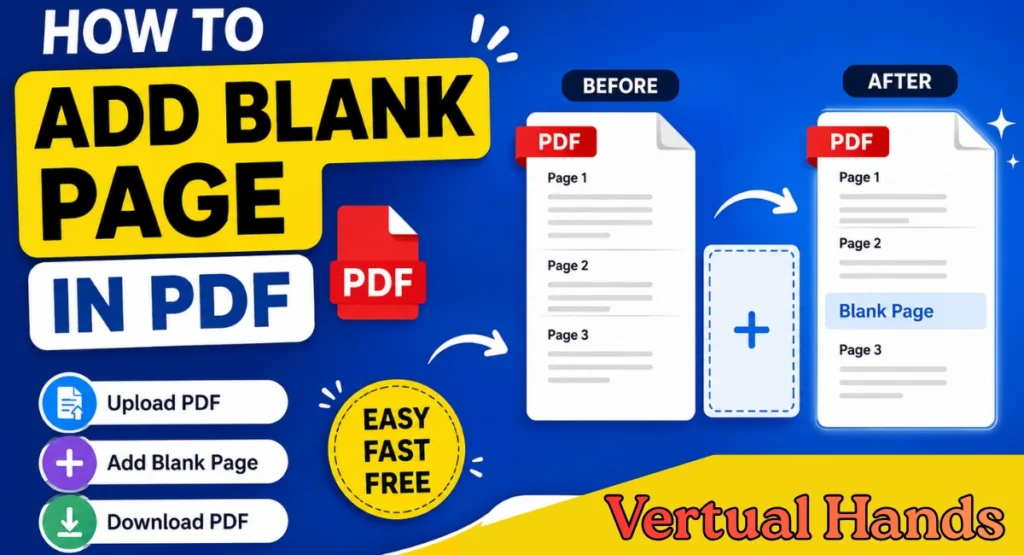
Sometimes you may need to add an empty page to a PDF file. For example, you may want to keep some extra space for notes, add a separator page, or prepare a PDF for printing.
Doing this manually can be difficult if you do not have a PDF editor. The good thing is that you can add blank pages to a PDF online using a simple tool.
In this article, I will show you how to add a blank page to a PDF using the Add Blank Pages to PDF tool on Wexira.
What Is a Blank Page in a PDF?
A blank page is an empty page added to an existing PDF document.
You can add a blank page at the beginning, in the middle, or at the end of your PDF. It can be useful for many purposes.
For example, you can use a blank page for notes, signatures, printing, document separation, or adding extra content later.
How to Add a Blank Page to a PDF
Adding a blank page is very easy. You do not need advanced PDF editing software.
Step 1: Open the Tool
First, open the Add Blank Pages to PDF tool.
Click Here: Add Blank Pages to PDF Tool
You will see the PDF upload option on the page.
Step 2: Upload Your PDF
Click on the upload button and select the PDF file from your computer or device.
Wait for the PDF to load into the tool.
Step 3: Select Where to Add the Blank Page
After uploading your PDF, choose where you want to add the blank page.
You can place the blank page before a selected page or at the position you need in the document.
For example, if you want a blank page between page 2 and page 3, select the appropriate position between those pages.
Step 4: Add the Blank Page
Once you have selected the position, add the blank page.
The tool will place an empty page in your PDF without changing the existing content of your other pages.
Step 5: Download the PDF
After adding the blank page, create the updated PDF.
Once the process is complete, download the new PDF to your device.
You can now open the file and check that the blank page has been added in the correct position.
Why Add a Blank Page to a PDF?
There are many situations where an empty page can be useful.
You may want to add a page for handwritten notes. A blank page can also be used as a separator between different sections of a document.
It can also be helpful when preparing documents for printing. In some cases, adding a blank page can make sure a new section starts on the correct side of a printed document.
Students can use blank pages for notes, while businesses can use them for document organization.
Do I Need PDF Editing Software?
No. If you only need to add a blank page, you do not need complicated PDF editing software.
The online tool makes the process much simpler. You can upload your PDF, add the blank page, and download the updated file.
Can I Add a Blank Page to an Existing PDF?
Yes. You can add a blank page to an existing PDF without creating the entire document again.
This is useful when your PDF is already finished but you later realize that you need an extra empty page.
Conclusion
Adding a blank page to a PDF does not have to be complicated. With the Add Blank Pages to PDF tool from Wexira, you can quickly add an empty page to your document and create an updated PDF.
You can use it for notes, section separation, printing, or any other situation where you need an extra blank page.