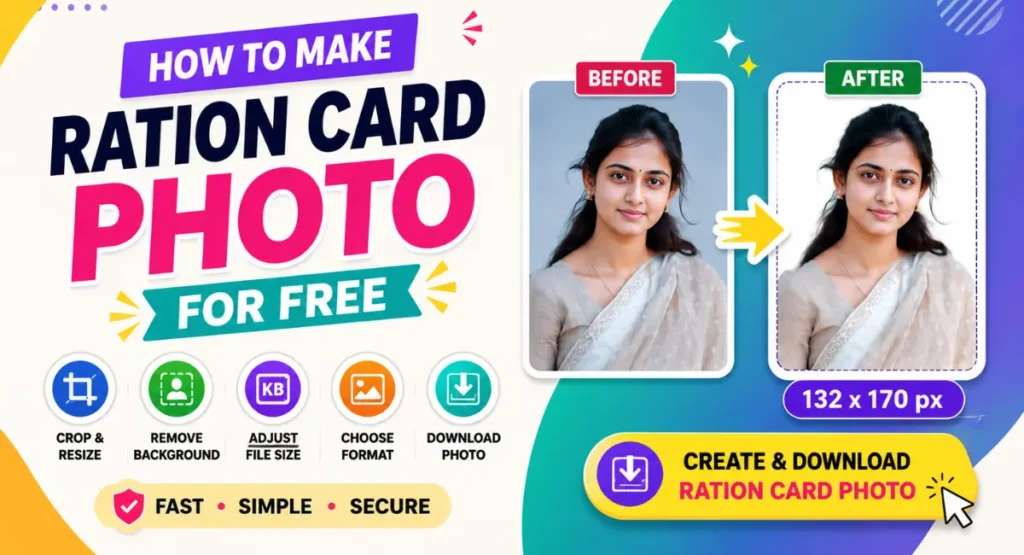
When applying for a ration card, you need to upload a passport style photo that follows a specific size or file size requirement. Getting the right photo can sometimes be confusing, especially when the application asks for a particular width, height, or maximum file size.
You do not always need a photo editing app for this. You can create a ration card photo online using the free Ration Card Photo Maker from Wexira.
The tool gives you useful options to crop your photo, adjust the size, remove the background, choose the output format, and keep the file within a selected KB limit.
What Is a Ration Card Photo Maker?
A ration card photo maker is an online tool that helps you prepare a photo for use in ration card applications.
Instead of opening a complicated photo editor, you can upload your photo and adjust it using simple controls.
You can also check the image dimensions and estimated file size before downloading the final photo.
Open the tool here: Ration Card Photo Maker
How to Make a Ration Card Photo for Free
Follow these simple steps to prepare your photo.
Step 1: Upload Your Photo
Open the Ration Card Photo Maker and upload the photo you want to use.
Choose a clear photo where your face is visible. A good quality original photo will usually give you a better result.
After uploading, the image will appear in the editing area where you can adjust it.
Step 2: Crop and Adjust the Photo
Use the photo editing area to position your image correctly.
You can move and adjust the photo so that your face is properly placed inside the required area.
The tool also shows the current dimensions and aspect ratio. This makes it easier to understand the size of the photo while editing.
For example, the interface can show dimensions such as 132 × 170 px along with the image ratio.
Step 3: Remove the Background if Needed
The tool includes an AI Background Removal option.
You can choose from different processing modes such as Original, Fast, and High Quality.
If your original background is suitable, you can keep it as it is. If you need to replace the background, the tool also provides background colour options.
You can choose a suitable background colour from the available choices.
Always check the requirements of the ration card application before choosing a background colour.
Step 4: Choose the Target File Size
One useful feature of the tool is the target file size option.
You can select a maximum file size such as:
10 KB, 20 KB, 30 KB, 50 KB, 60 KB, 80 KB, 100 KB, or Max
This can be helpful when an online application has a maximum image size requirement.
For example, if the application says that your photo should be below 50 KB, you can select the appropriate target size before downloading it.
The final file size can vary depending on the original image and other settings, so it is a good idea to check the result before uploading it to the application.
Step 5: Select the Image Format
The tool provides different output formats.
You can choose JPG, JPEG, or PNG depending on what you need.
If the application specifically asks for JPG or JPEG, select that format before downloading your photo.
Step 6: Choose a Photo Border
You can also select a border style for the photo.
The available options include Thin Black, Dashed, White, and None.
If the application does not require a border, you can choose the option that best matches its instructions.
Step 7: Check the Final Dimensions
Before downloading the image, check the dimensions displayed by the tool.
This is useful when the application requires a particular photo size.
The tool also displays an estimated file size, so you can make sure the image is close to your selected file size requirement.
Step 8: Download Your Ration Card Photo
Once everything looks correct, click the download button.
The tool will create your resized ration card photo and you can save it to your device.
Before uploading it to a government website or application form, open the downloaded image once and check that the photo looks clear and the size is correct.
What Size Should a Ration Card Photo Be?
The required photo size can vary depending on the particular ration card application, state, portal, or service.
Do not assume that one size works for every application.
Always check the latest instructions on the official application website before preparing your photo.
Once you know the required dimensions and file size, you can use the settings in the Ration Card Photo Maker to prepare the image accordingly.
How to Reduce Ration Card Photo Size
If your photo is too large for the application, you can select a suitable target KB size in the tool.
For example, you can choose 20 KB, 30 KB, 50 KB, or another available limit.
The tool will process the image according to the selected settings.
This is useful when an application has a strict maximum file size.
How to Change the Background of a Photo
If you need to change the photo background, use the AI Background Removal section.
Choose the processing option that works best for your image and then select a replacement background colour.
For the best result, use a clear photo with good lighting and a visible face.
Can I Make the Photo on My Phone?
Yes. You can open the Ration Card Photo Maker in your mobile browser.
Upload your photo, adjust the crop, select the required dimensions and file size, choose the format, and download the finished image.
You do not need to install a separate photo editing application.
Why Use an Online Ration Card Photo Maker?
Preparing an application photo can take time when you have to resize and compress the image separately.
An online tool brings these options together in one place.
You can work with the photo, check its dimensions, select a target file size, choose the image format, and download the final result.
This makes the process easier for people who only need to prepare a photo for an online application.
Final Words
Making a ration card photo does not have to be complicated. With the free Ration Card Photo Maker from Wexira, you can prepare your photo online and adjust important settings such as dimensions, background, file size, format, and border.
Just remember to check the current photo requirements of your specific ration card application before downloading the final image.