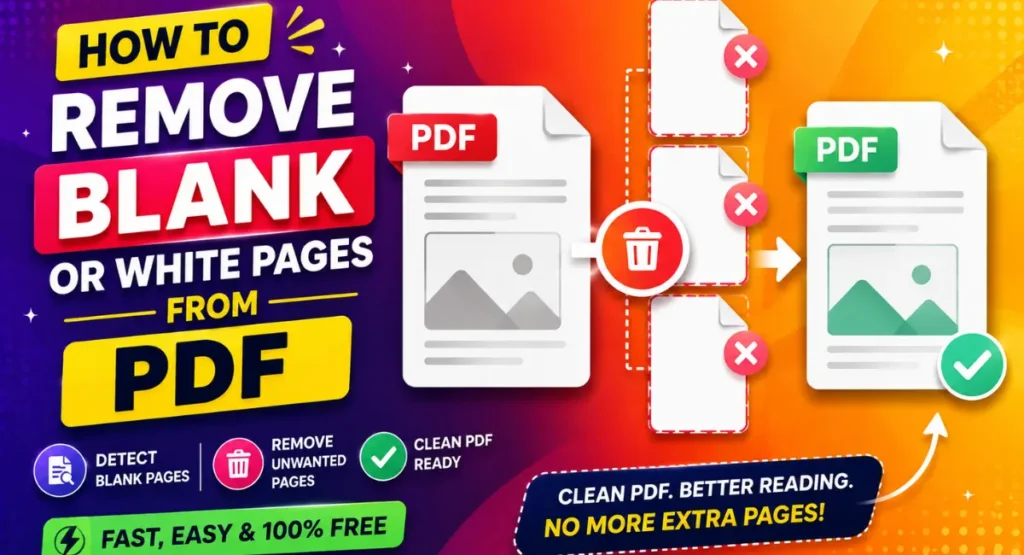
Have you ever opened a PDF and found some blank or white pages that you do not need?
Extra blank pages can make a PDF look messy and can also increase the number of pages in your document. Removing them manually can take time, especially when you have a large PDF.
The good news is that you can remove blank or white pages from a PDF online with a simple tool.
In this article, I will show you how to remove blank pages from a PDF using the Remove PDF Blank Pages tool from Wexira.
Why Do PDFs Have Blank Pages?
Blank pages can appear in a PDF for different reasons.
Sometimes they are added by mistake while creating or combining documents. A scanner can also create an empty page when it scans both sides of a paper.
You may also get blank pages when converting files from another format to PDF.
If your PDF has several unnecessary pages, removing them can make the document cleaner and easier to read.
How to Remove Blank Pages from a PDF
You can remove blank or white pages from your PDF in a few simple steps.
Step 1: Open the PDF Blank Page Remover
First, open the Remove PDF Blank Pages tool from Wexira.
Tool Link: Remove PDF Blank Pages Tool
The tool is designed to help you find and remove unnecessary blank pages from a PDF.
Step 2: Upload Your PDF
Click on the upload option and select the PDF file from your computer or mobile device.
Wait for the PDF to load into the tool.
Make sure you select the PDF that contains the blank or white pages you want to remove.
Step 3: Remove the Blank Pages
After your PDF is loaded, the tool can check the pages and identify blank pages.
Review the pages and remove the ones that you do not need.
This is useful when you have a PDF with many pages because you do not have to search through every page manually.
Step 4: Download the New PDF
After removing the unwanted blank pages, create the updated PDF.
Download the new file to your device and open it to check the result.
Your PDF should now contain only the pages that you want to keep.
Can I Remove White Pages from a PDF?
Yes. White pages that do not contain useful content can be removed from a PDF.
This can be especially useful for scanned documents. Sometimes a scanner creates completely white pages because there was no content on one side of the paper.
Removing these pages can make the final PDF shorter and more organized.
Why Remove Blank Pages from a PDF?
There are several reasons to remove unnecessary pages from a PDF.
A document with fewer pages is easier to read and share. It can also be more convenient when you need to print the document.
Removing empty pages can also make it easier to find the information you need.
For example, if you have a scanned document with 50 pages and several of them are completely blank, removing those pages can make the document much cleaner.
Remove Blank Pages Without Installing Software
You do not need complicated PDF editing software just to remove blank pages.
An online tool can make the process much easier. You can upload your PDF, remove the unwanted pages, and download the updated file from your browser.
This is useful when you only need to perform a quick PDF task.
Can I Use the Tool on a Phone?
Yes, you can open the tool in a mobile browser.
Upload your PDF, remove the unnecessary blank pages, and download the updated PDF.
You do not need to install a separate application for this task.
When Is This Tool Useful?
The blank page remover can be useful for students, teachers, office workers, businesses, and anyone who works with PDF documents.
It can help clean scanned documents, reports, forms, books, and other PDF files that contain unwanted empty pages.
Conclusion
Removing blank or white pages can make a PDF cleaner and easier to manage.
Instead of searching through a PDF and deleting pages manually, you can use the Remove PDF Blank Pages tool from Wexira.
Simply upload your PDF, remove the unnecessary blank pages, and download the new PDF.
Try the tool here: Remove Blank or White Pages from PDF